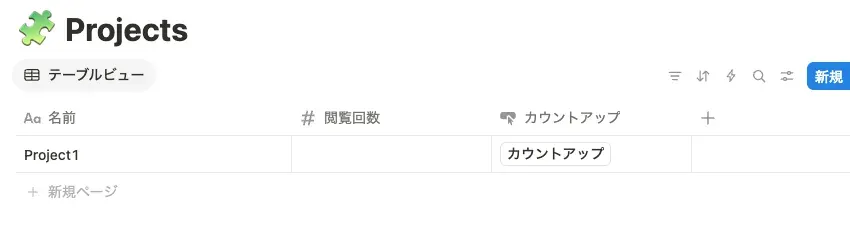
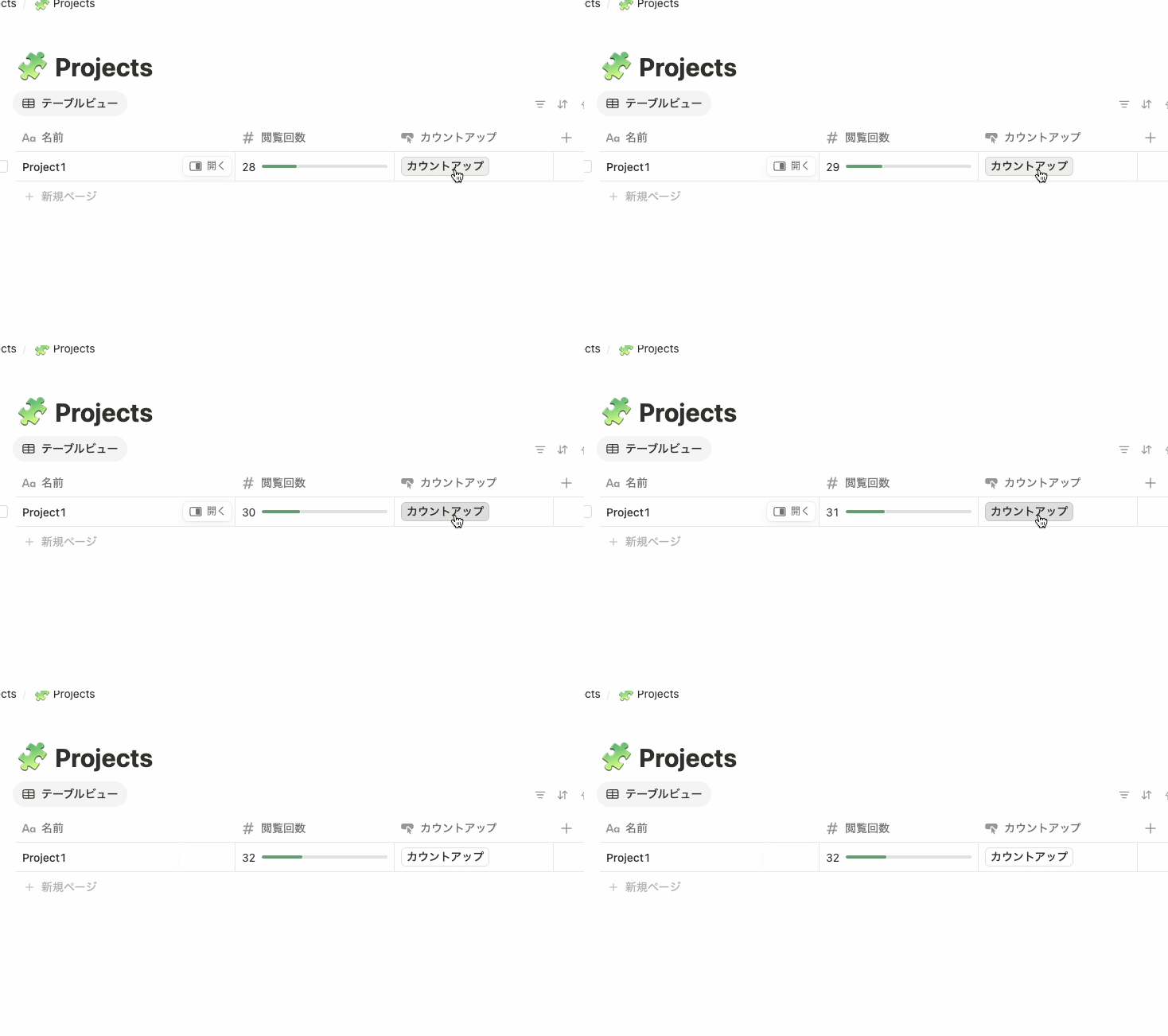
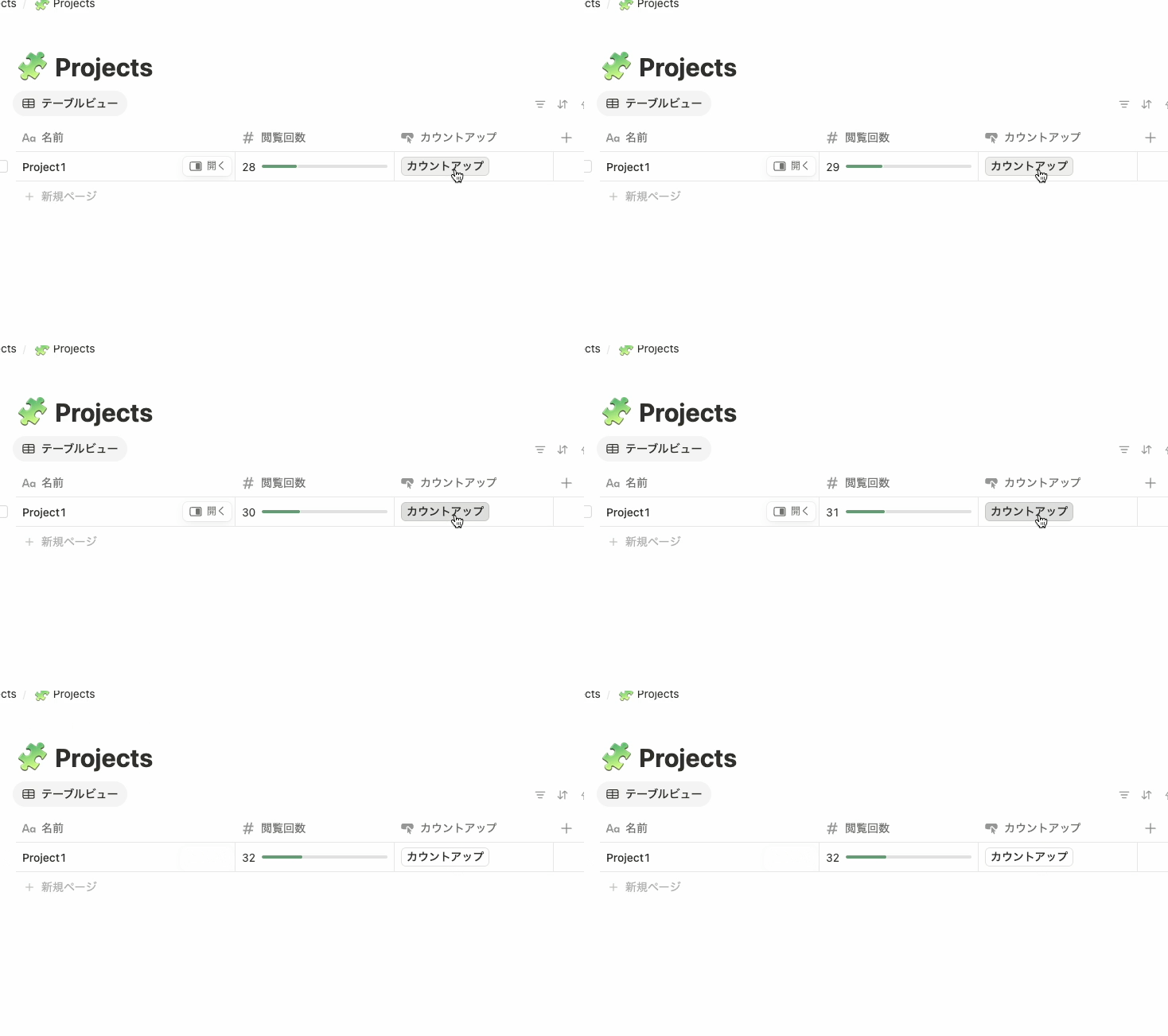
🥞 The finished product
🍳 Let’s cooking
🐱 Creating the properties
First, add the following two properties to the database.
- A “Number” property that holds the value
- A “Button” property that implements the count-up button
This time I defined the number as “View count” and the button as “Count up”.
| ”Number” property | ”Button” property |
|---|---|
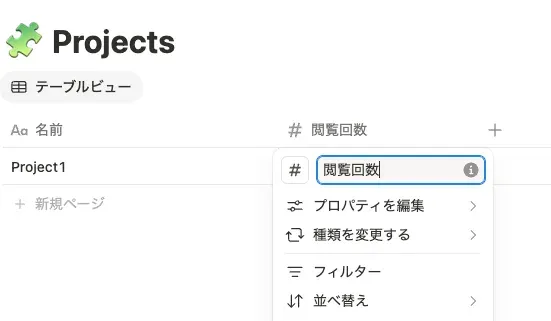 | 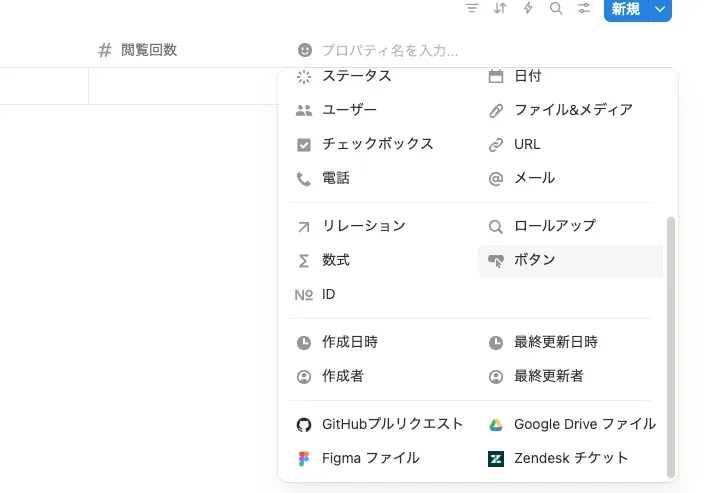 |
🐑 Creating the variable
Once you’ve created them, click the button’s header and select “Edit automation”.
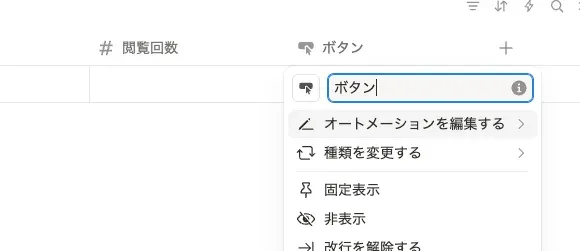
A screen like this appears, so click “New action”.
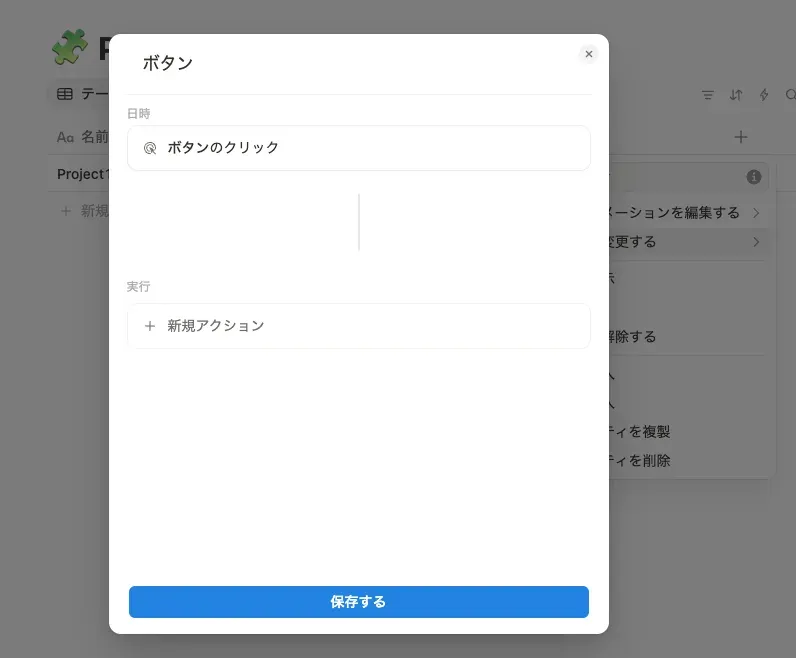
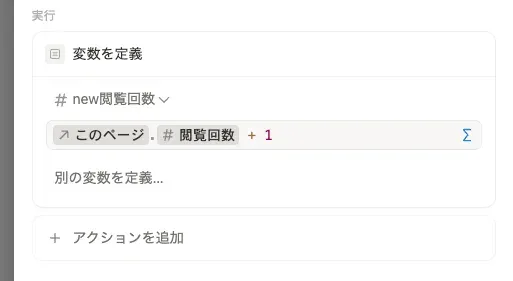
First, select “Define variable” to create a variable that holds the new view count.
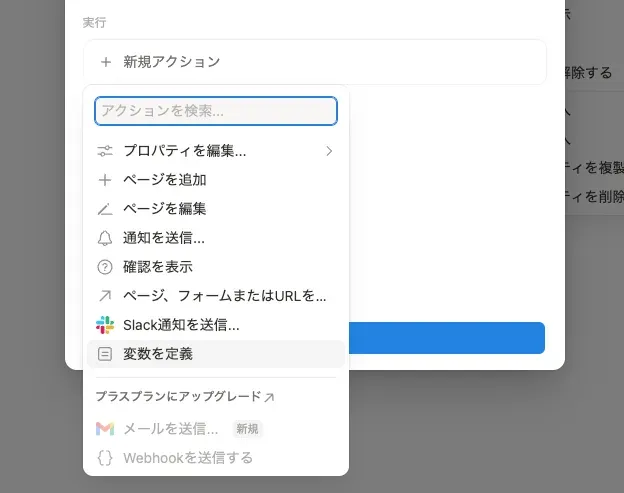
This time I named the variable newViewCount. The variable name can be anything.
A field for entering a formula appears, so click it and select “This page”.
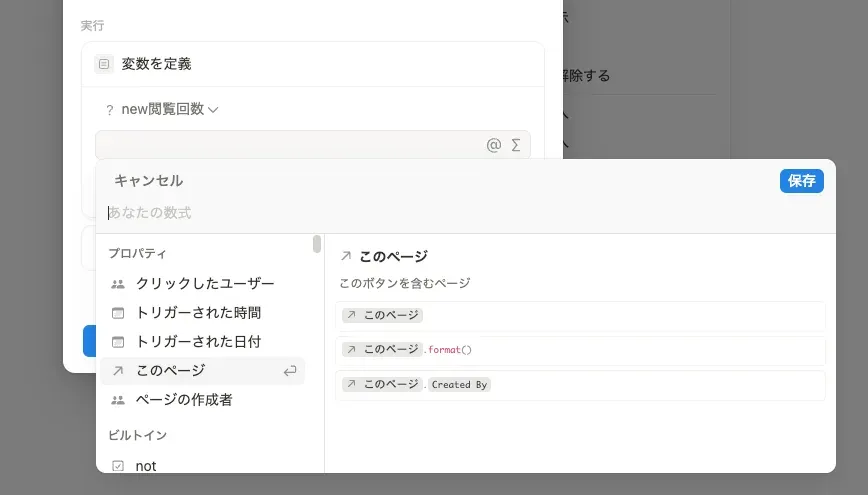
After selecting “This page”, a list of the properties of the table you’re editing is displayed.
Select and click the property name you set up earlier. This stores the value currently set on that property into the variable you defined.
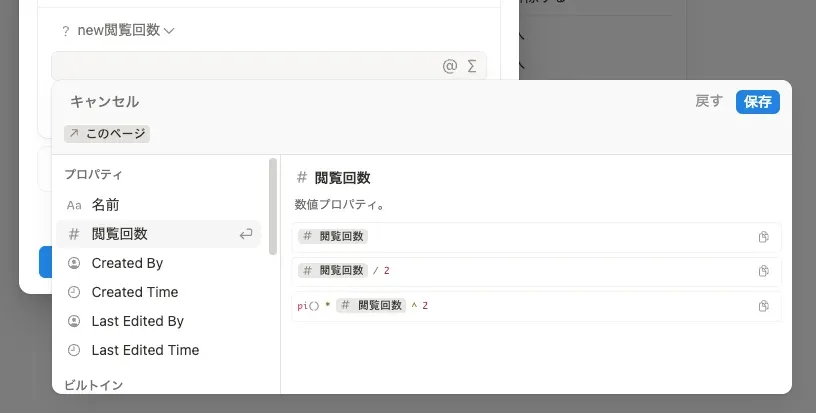
Since we want to count up this time, enter a formula so it becomes the current value + 1.
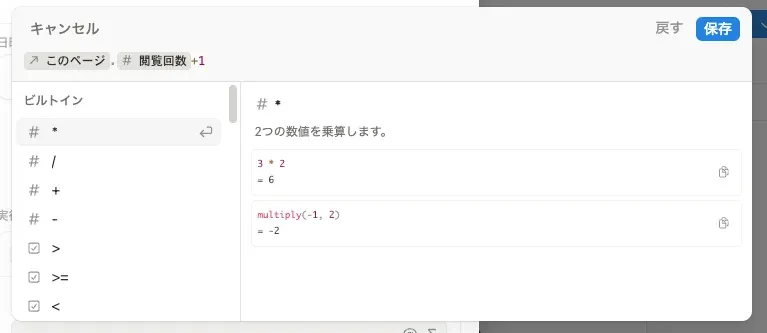
Once you’ve done this, the action looks like this.
☕️ Assigning the variable
The newly created variable now holds the current value + 1, so we assign this value back so it becomes the current value.
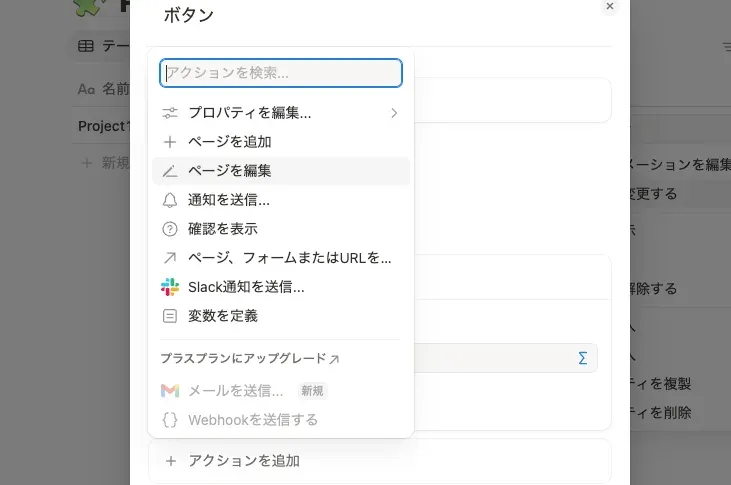
Click “Add action” and click “Edit page”.
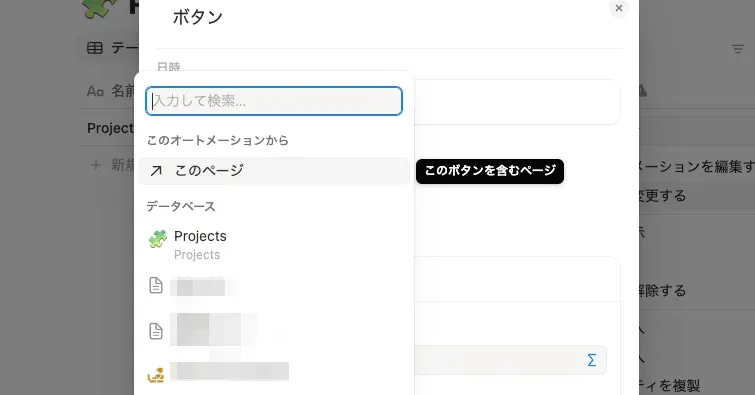
Click “Select database” and click “This page”.
Next, click “Edit property” and select the property you want to change. (In this case, select “View count”.)
A formula input field then appears, so click the Σ mark on the right side of the field and click the variable name you defined earlier. (This time, “newViewCount”.)
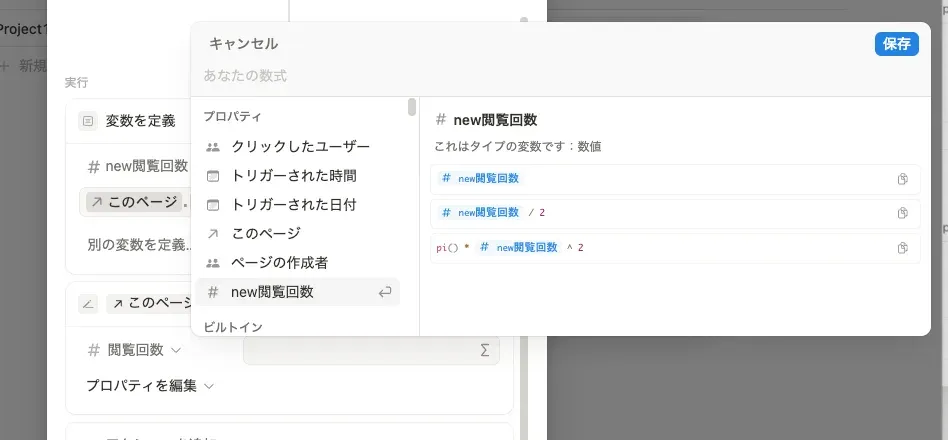
Once this setup is complete, press “Save” to finish 🌱
🍁 Result