Introduction
While letting Claude Code handle issues in VSCode, I found myself wanting to do the following:
- Work on another issue locally in parallel while Claude works on one issue
- Keep the dev server running in my main VSCode while I do other work, without being interrupted
- As soon as Claude finishes, quickly verify the result in my local browser. If it looks good, have it create the PR right away
- There are cloud-based AIs that handle everything on their own, but I want to review the diff and verify things using the VSCode I’m used to
As a solution, I used git’s worktree feature together with a custom slash command. With git worktree, you can create multiple independent working directories from a single repository (file edits don’t conflict with each other, and the git history is shared). I automated this with Claude Code’s custom slash commands.
How it works
Here’s what it looks like in action.
- Specify the issue you want worked on with
/issue <GitHub Issue number>(manual) - A git worktree is created automatically (automatic)
- A new VSCode window opens (automatic)
- A terminal opens automatically in the new VSCode,
/issue-workruns, and work begins (automatic)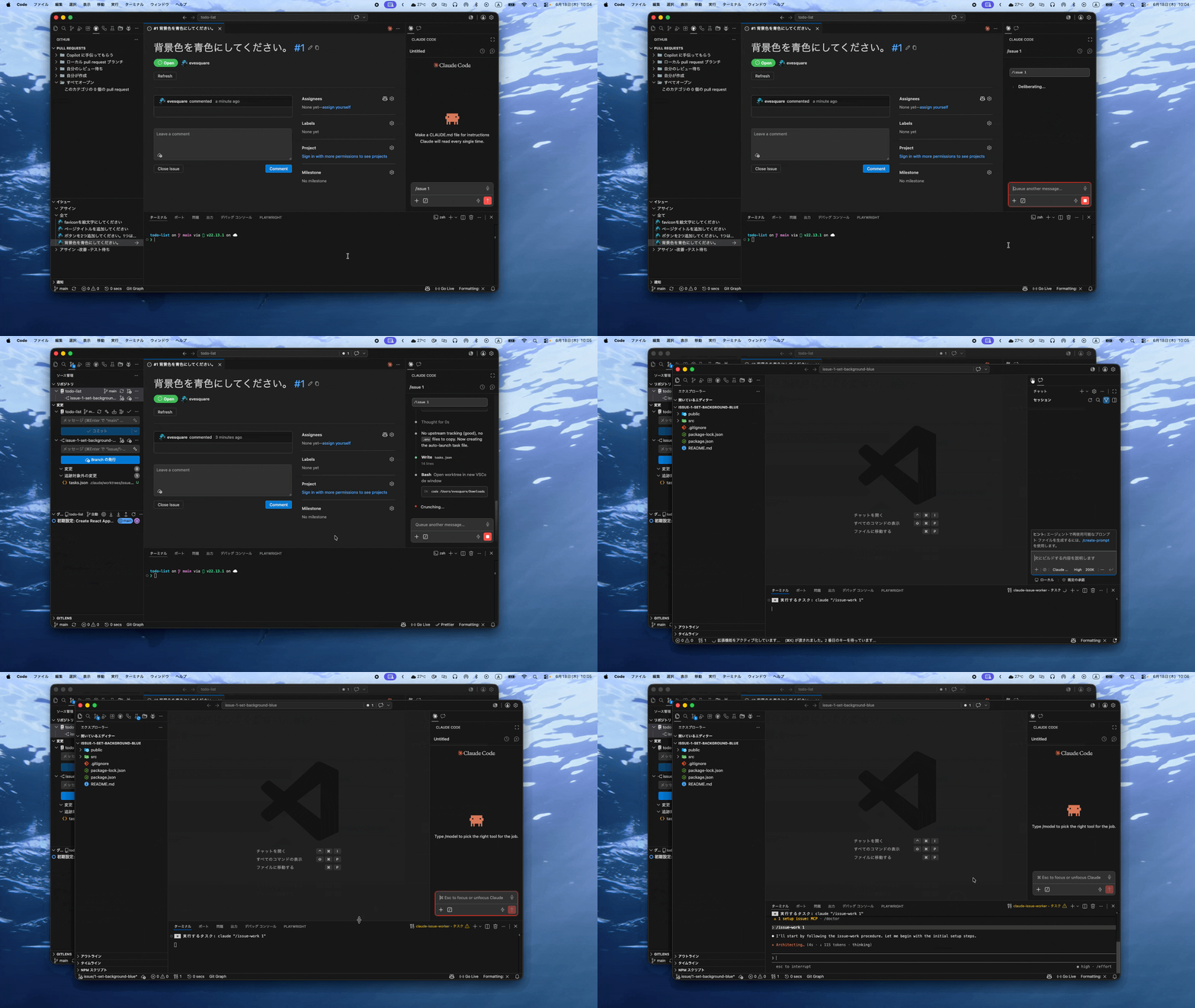
Setup
Let’s put the /issue and /issue-work commands I created into a form that Claude Code can read as custom slash commands.
If you place them under ~/.claude/commands/, they can be used across all repositories.
Adding the custom slash commands
Copy the text below and use it.
/issue (VSCode launcher)
---
description: Create a worktree from an issue number and automatically launch a Claude work session in a new VSCode window (launcher)
argument-hint: <issue number>
---

Set up the work environment for GitHub Issue #$ARGUMENTS.
Your role is that of a **launcher**. Implementation is not done in this session (the `/issue-work` on the new window side handles implementation).

## Ground rules (most important)

- **The current checkout is being used by the user for other work. Never touch it.**
  Editing files, `git checkout` / `git switch` / `git stash` in the current directory are prohibited.
- Running this command itself may be treated as "permission to create a branch for the worktree."

## Steps

1. Get the issue title with `gh issue view $ARGUMENTS --json title -q .title` and create a **slug**:
   - Convert to alphanumeric kebab-case (e.g., "Fix login form validation" → `fix-login-form-validation`)
   - For Japanese titles, translate loosely into short English that captures the content (e.g., "ログイン画面のバリデーション修正" → `fix-login-validation`)
   - Up to 3–5 words / about 30 characters. Remove symbols
   - From here on, the worktree name is `issue-$ARGUMENTS-<slug>` and the branch name is `issue/$ARGUMENTS-<slug>`
2. Run `git fetch origin` and create the worktree:
   `git worktree add .claude/worktrees/issue-$ARGUMENTS-<slug> -b issue/$ARGUMENTS-<slug> origin/HEAD`
   (If a branch with the same name already exists, drop `-b` and create it on the existing branch)
3. Copy files that are gitignored but required to run (such as `.env`) from the main checkout into the worktree.
4. Create `.vscode/tasks.json` inside the worktree. This is a **throwaway file** for auto-launching Claude in the new window (the `/issue-work` side deletes it right after startup):

   ```json
   {
     "version": "2.0.0",
     "tasks": [
       {
         "label": "claude-issue-worker",
         "type": "shell",
         "command": "claude \"/issue-work $ARGUMENTS\"",
         "runOptions": { "runOn": "folderOpen" },
         "presentation": { "focus": true, "panel": "dedicated" },
         "problemMatcher": []
       }
     ]
   }
   ```

5. Open a new VSCode window with `code <absolute path of worktree>`.
6. Report the following and finish:
   - The worktree path and that `/issue-work $ARGUMENTS` will auto-launch in the new window
   - If it doesn't auto-launch (e.g., the auto task isn't allowed), that running `claude "/issue-work $ARGUMENTS"` manually in the new window's terminal is fine

This session can continue to accept another `/issue <number>` (it can be reused as a dispatcher).
/issue-work (worker)
---
description: Inside a worktree, proceed from implementing the issue through waiting for verification to creating the PR (the worker auto-launched by /issue)
argument-hint: <issue number>
---

Handle GitHub Issue #$ARGUMENTS.
You are a **work session** launched inside a worktree. The current directory is that worktree.

## Ground rules

- Complete all work within this worktree. Do not touch anything outside the worktree (the main checkout).
- **Pushing and creating a PR are prohibited until the user says "OK".**

## Steps

1. First, delete `.vscode/tasks.json` (the throwaway file for auto-launch. Keep it out of the PR).
2. Check the issue's content and acceptance criteria with `gh issue view $ARGUMENTS`.
3. Install dependencies (e.g., `npm install`. The worktree is a fresh checkout, so `node_modules` doesn't exist).
4. Implement. If there are existing tests / lint, run them and make them pass.
5. Commit (do not push).
6. To prepare for verification, start the dev server **in the background**.
   Use a free port so it doesn't conflict with the server on the main checkout
   (e.g., `npm run dev -- --port 3001`. If 3001 is taken, try 3002, 3003, and so on).
7. When done, report the following and **stop, waiting for the user's confirmation**:
   - The verification URL (e.g., http://localhost:3001) and the screen / API / operations to check
   - A summary of the changes (what was changed and how)
8. When the user says "OK":
   - Stop the dev server.
   - Push and create a PR with `gh pr create` (include a change summary, verification details, and `closes #$ARGUMENTS` in the body).
9. If there is feedback to fix, fix it → re-commit → go back to step 7
   (if the server supports hot reload, you can leave it running).
10. After creating the PR, give cleanup instructions and finish:
    - That this window can be closed
    - That the worktree can be removed on the main checkout side by running
      `git worktree remove <absolute path of this worktree>`
      (Check the actual path with `pwd` and provide it. You can also ask the launcher-side Claude
      to "remove the worktree for issue #$ARGUMENTS".)
How it actually works
Here’s how it actually works under the hood. Feel free to skip this.
/issue (launcher): Only sets up the environment. Strictly instructed never to touch the main checkout. Can dispatch issues one after another in the same session.
/issue-work (worker): Auto-launched on the new window side, handles everything from implementation to waiting for verification.
Main terminal (dispatcher)
─────────────────────────────
1. Launch claude and accept the /issue 17 command
2. Get the issue title and content with gh
3. Create the worktree (the worktree name is auto-generated from the issue content)
4. Copy .env from main
5. Plant the throwaway tasks.json
6. Launch a new window with code <worktree path>


New VSCode window (opens automatically)
─────────────────────────────
The part that auto-launches Claude in the new VSCode window uses VSCode's auto task feature ("runOn": "folderOpen" in tasks.json).

1. The moment the folder opens, the auto task immediately deletes tasks.json (to prevent it leaking into the PR)
2. npm install (the worktree is a fresh checkout)
3. Implement → test → commit
4. If needed, start the dev server on a free port
Future outlook
- It might be worth automating everything through push, PR creation, and worktree removal once work is done. I didn’t want the AI to push on its own, so I left that out this time.
- As an aside, having Claude play a sound when it finishes work makes things go more smoothly.
References
 https://code.claude.com/docs/en/worktrees