Vercel now supports Dockerfiles. Until now Vercel was basically built around runtimes like Node.js and Next.js, but with this update you can run any container image directly as a Vercel Function.
The idea that “anything that runs in Docker can run on Vercel” sounded interesting, so I actually built a sample and deployed it end to end.
Here is the working sample.
The repository is here.
 https://github.com/evesquare/docker-on-vercel-sample
What became possible
In short, just by dropping a Dockerfile into your repository, that container now runs as an HTTP server on Vercel.
The key points are:
- Placing a
Dockerfile.vercel(orContainerfile.vercel) in the project root makes Vercel auto-detect and build it - The built image is pushed to the Vercel Container Registry (VCR)
- A rewrite rule that routes all traffic to that container is added automatically
- The container runs as a Vercel Function, billed with Active CPU pricing (you only pay for CPU you actually use)
- The only rule is that the server must listen on
$PORT(default80). As long as it speaks HTTP, anything can be deployed
Go, Rails, Spring Boot, Express, Laravel, FastAPI, nginx, and so on: any app you can containerize seems to run regardless of framework, which is the selling point.
Building the sample
This time I’ll run a dependency-free Node.js HTTP server as a container. The file layout looks like this.
.
├── Dockerfile.vercel   # container definition auto-detected by Vercel
├── server.js           # minimal HTTP server that listens on $PORT
├── package.json
├── public/
│   └── index.html      # top page
└── .dockerignore
Dockerfile.vercel
The key is naming the file Dockerfile.vercel rather than Dockerfile. With this name, Vercel automatically recognizes it as a container build.
FROM node:26-alpine

WORKDIR /app

# Dependencies (only standard modules here, so we just copy package.json)
COPY package.json .

# Application itself
COPY server.js .
COPY public ./public

# Expose 80 to match the docs.
ENV PORT=80
EXPOSE 80

CMD ["node", "server.js"]
The contents are just a normal Dockerfile. No special base image or Vercel-specific declarations are needed; you only have to follow the one rule of “start an HTTP server on $PORT.”
server.js
I write the server using only Node’s standard http module, without any external libraries. It satisfies the one rule of “listen on $PORT (default 80).”
import { createServer } from "node:http";
import { readFile } from "node:fs/promises";
import { fileURLToPath } from "node:url";
import { dirname, join } from "node:path";

const __dirname = dirname(fileURLToPath(import.meta.url));
const PORT = process.env.PORT || 80;

const server = createServer(async (req, res) => {
  // Health check endpoint
  if (req.url === "/api/health") {
    res.writeHead(200, { "Content-Type": "application/json" });
    res.end(JSON.stringify({ status: "ok", uptime: process.uptime() }));
    return;
  }

  // API that returns info about the container internals (to confirm it runs in a container)
  if (req.url === "/api/info") {
    res.writeHead(200, { "Content-Type": "application/json" });
    res.end(
      JSON.stringify(
        {
          message: "Hello from a Dockerfile running on Vercel!",
          node: process.version,
          platform: process.platform,
          arch: process.arch,
          hostname: process.env.HOSTNAME ?? null,
          port: Number(PORT),
          clientIp: req.headers["x-forwarded-for"] ?? null,
          time: new Date().toISOString(),
        },
        null,
        2,
      ),
    );
    return;
  }

  // Everything else returns the top page (static HTML)
  try {
    const html = await readFile(join(__dirname, "public", "index.html"));
    res.writeHead(200, { "Content-Type": "text/html; charset=utf-8" });
    res.end(html);
  } catch {
    res.writeHead(404, { "Content-Type": "text/plain" });
    res.end("Not Found");
  }
});

// Graceful shutdown on SIGTERM
process.on("SIGTERM", () => {
  console.log("SIGTERM received, shutting down gracefully...");
  server.close(() => process.exit(0));
});

server.listen(PORT, () => {
  console.log(`Server listening on port ${PORT}`);
});
I added SIGTERM handling because Vercel sends a SIGTERM to the container when it scales in (with a 30-second grace period). Since the container automatically scales down when traffic stays idle, writing cleanup code is the polite thing to do.
Verifying locally
Before deploying, I check that it runs in local Docker.
docker build -f Dockerfile.vercel -t docker-on-vercel-sample .
docker run --rm -p 8080:80 docker-on-vercel-sample
# open http://localhost:8080
Hitting /api/info returns the container internals as JSON.
curl -s localhost:8080/api/info{
"message": "Hello from a Dockerfile running on Vercel!",
"node": "v26.4.0",
"platform": "linux",
"arch": "arm64",
"hostname": "3fd6a73c0740",
"port": 80,
"clientIp": null,
"time": "2026-07-01T00:00:00.000Z"
}You can confirm that Node really is running inside a Linux container.
Deploying to Vercel
Since it worked locally, I deploy to Vercel. First I install the Vercel CLI.
npm i -g vercel
vercel --version
# Vercel CLI 54.18.6
Then it’s a matter of logging in, linking, and deploying.
# 1. Log in (browser authentication runs)
vercel login

# 2. Link the project (interactively create new or select existing)
vercel link

# 3. Deploy (the image is built and pushed to VCR during build)
vercel deploy
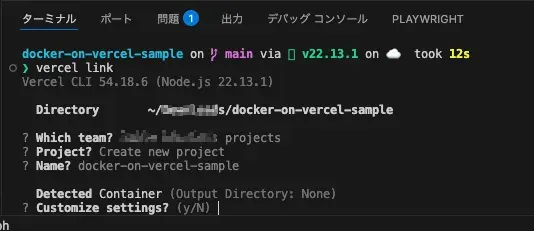
vercel link configures the project interactively. Here it shows Detected Container, so you can see Vercel recognizing the container setup.
Running vercel deploy builds the Docker image during the build step and pushes it to the Vercel Container Registry. If you connect a Git repository, it automatically builds on each push and issues a preview URL, just like normal Vercel.

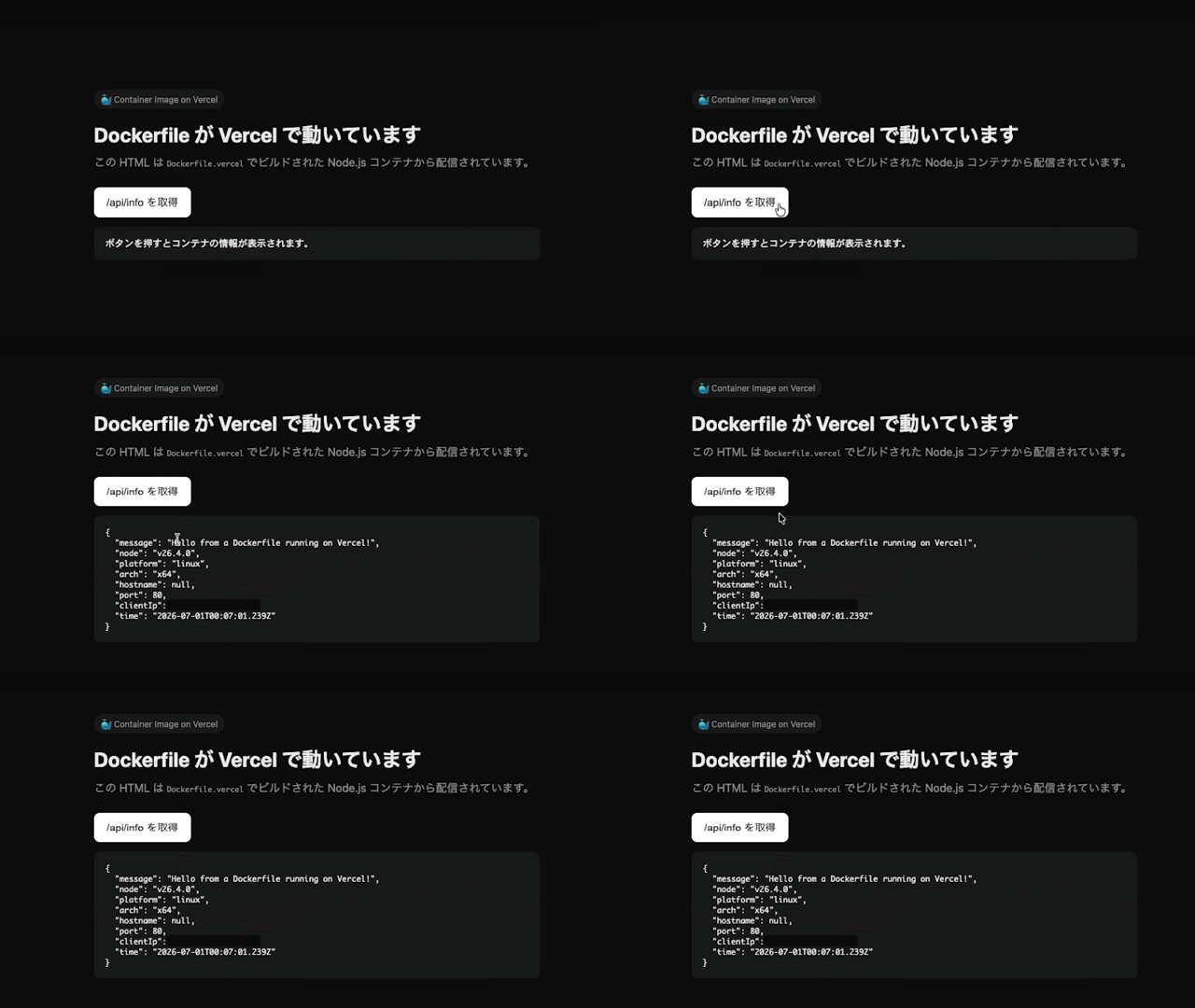
Once the deploy finishes, a Production URL is issued. The page is properly served through the container.
Hitting /api/info via the button on the page returns the container internals like this.
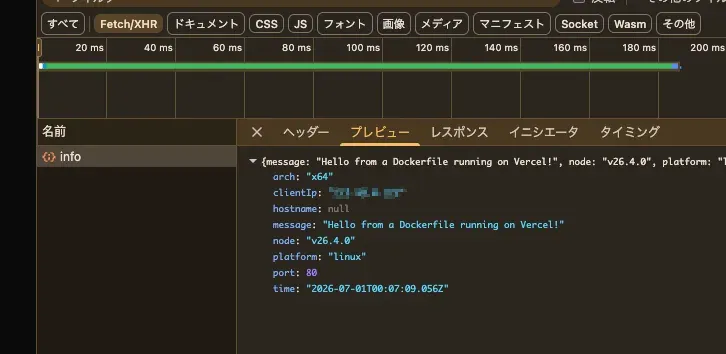
Looking at the /api/info response in the browser DevTools, you can confirm that Node is running on a Linux container with arch: "x64".
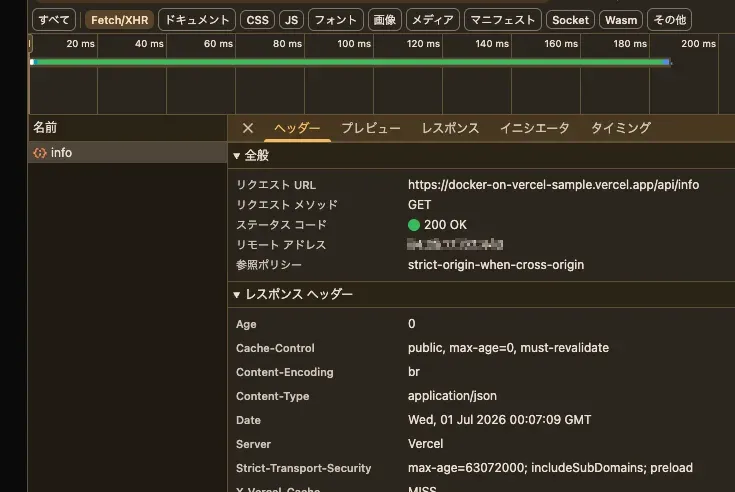
Looking at the response headers, Server: Vercel appears, showing that the container is being served through Vercel.
Behaviors worth remembering
Here is a summary of behaviors I noticed while trying it out, or that were documented.
- The default port is
80. If you want to change it, override thePORTenvironment variable in the Vercel project settings - The service scales down when traffic stays idle. The grace period is 5 minutes in production, 30 seconds in preview
- On scale-in, the container receives a
SIGTERMand is force-terminated after a 30-second grace period - The container’s
stdout/stderrflow into Vercel’s runtime logs. Note that logs not tied to a request are broadcast to all requests on that instance - Billing is the same Active CPU pricing as normal Vercel Functions; you are not billed while waiting on I/O or sleeping
- As of now, Secure Compute and Static IPs are not yet supported
Hosting multiple apps in one project (services)
This time I used a single-container setup, but with services in vercel.json you can co-locate multiple apps such as a frontend and a backend in the same project.
{
  "services": {
    "frontend": {
      "root": "frontend/",
      "entrypoint": "Dockerfile.vercel"
    },
    "backend": {
      "root": "backend/",
      "entrypoint": "Dockerfile.vercel"
    }
  },
  "rewrites": [
    { "source": "/api/(.*)", "destination": { "service": "backend" } },
    { "source": "/(.*)", "destination": { "service": "frontend" } }
  ]
}
You place a Dockerfile.vercel under each service’s root and route per path with rewrites. Being able to keep a microservice-style setup entirely within Vercel looks convenient.
Wrap-up
Just dropping a Dockerfile.vercel and having the container run directly as a Vercel Function was easier than I expected. Since the only minimal rule is to speak HTTP on $PORT, the strength is that you can bring an existing Docker app over almost as-is.
This looks like it will help when you want to run runtimes other than Node (Go, Rails, FastAPI, and so on), or deploy apps with dependencies that were awkward to handle on Vercel.
References

 https://vercel.com/docs/functions/container-images